


Status report template
Use a ready-made status report template to share progress, blockers, and next steps faster, without searching for information within spreadsheets, emails, and other productivity tools.
Sign up to create your own template.
Status report template
Use a ready-made status report template to share progress, blockers, and next steps faster, without searching for information within spreadsheets, emails, and other productivity tools.
Create your templateSign up to create your own template.
INTEGRATED FEATURES
Recommended apps




Summary
Keeping stakeholders updated on project progress shouldn't take up all your productive time. Without a consistent format, creating a status report often means gathering details from spreadsheets, emails, and team members, then hoping people read it. A good status report template fixes this by giving you a simple structure to share what's on track, what's blocked, and what's next.
In this article, you'll find out what a status report is, the types you can use, what to include in each, and tips for writing updates that keep your team on the same page. You'll also learn how Asana's status report templates connect with your team's work, so you can avoid manual data collection and focus on what matters.
What is a project status report?
A project status report summarizes a project's progress, health, and upcoming priorities for stakeholders. It gives your team a high-level view of what's on track, what's behind schedule, and what's coming next.
The UK government's project delivery guidance describes the purpose of reporting as making sure management teams and interested parties know the current status and outlook of work compared with the original plan.
An effective status report also covers:
Current blockers: Issues slowing your project down right now
Project risks: Potential problems that could cause delays
Next steps: Upcoming actions to keep work moving forward
Teams usually send project status reports weekly or monthly to keep everyone informed. This way, you spend less time on updates and more time doing important work.
What is a status report template?
A status report template is a ready-made project status report. It gives you a reusable structure for your updates, showing what sections and information to include. With the template, you just fill in the details and send it to your team.
Look for a status report template built into a larger work management platform, like Asana. That way, status updates are directly connected to your team's work, and you can:
Pull data without switching apps: Access information from any project or team in one place
Automate repetitive tasks: Centralize your information instead of tracking down numbers from multiple sources
Types of status reports
Not all status reports have the same purpose. The type you use depends on how often you report, who will read it, and how much detail your stakeholders need.
Daily status reports
Daily status reports are short updates that cover what each team member accomplished and what they plan to work on next. They're especially useful for fast-moving projects or teams that need to stay closely coordinated, like product launches or teams running daily standups.
Weekly status reports
Weekly reports are the most common. They provide a broader view of progress, blockers, and priorities for the coming week. This approach keeps stakeholders informed while giving your team time to make real progress between updates.
Monthly status reports
Monthly status reports summarize key accomplishments, budget status, risks, and upcoming milestones over a longer period. They're well-suited for teams creating executive reporting for stakeholders who want to understand overall project health without granular detail.
Quarterly status reports
Quarterly reports show progress toward strategic goals and long-term plans. They help leaders decide how to use resources and what changes to make going forward.
What to include in a status report template
A good status report summarizes project progress, recent wins, upcoming blockers, and next steps in a format stakeholders can scan quickly.
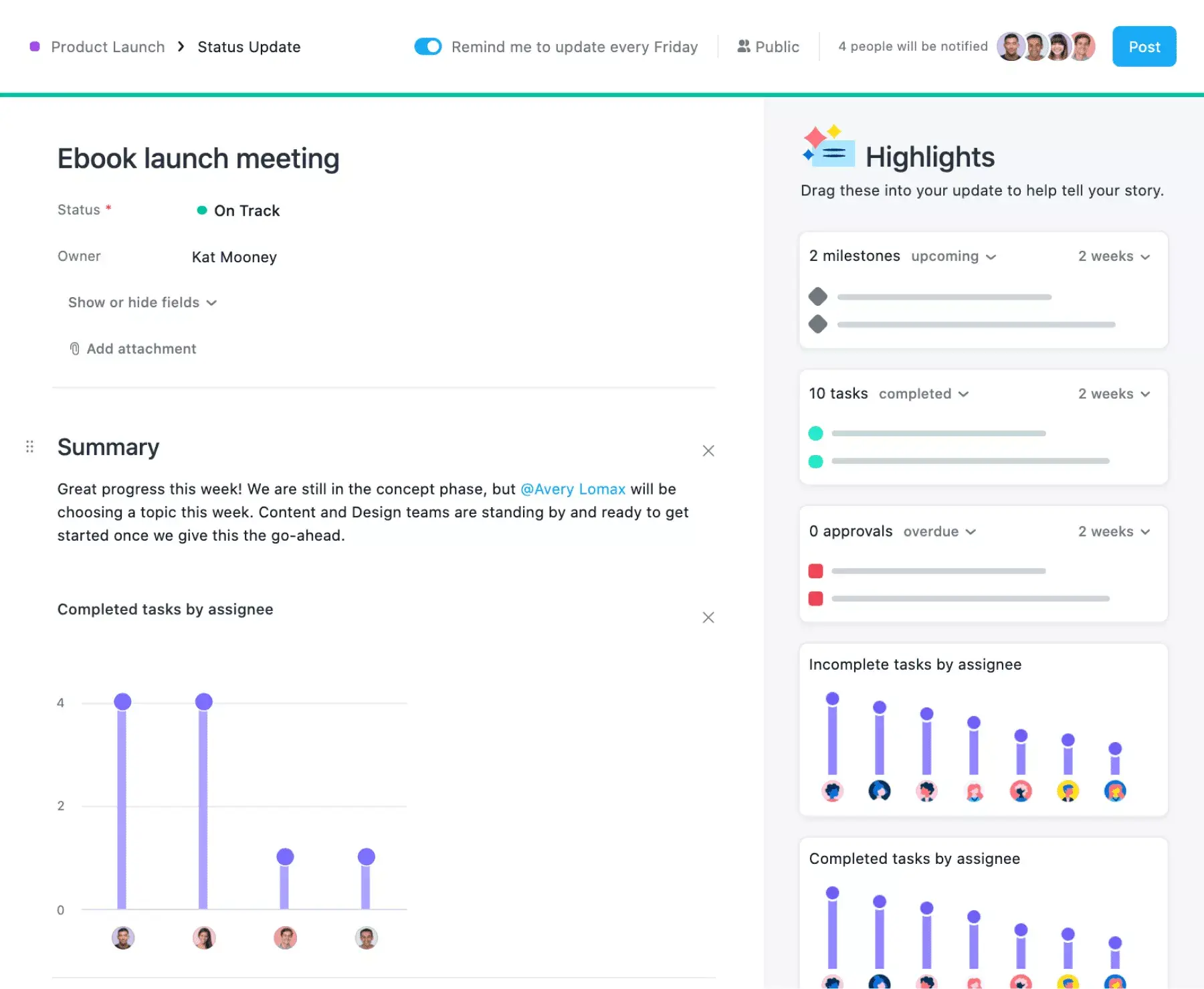
Status report templates in Asana come pre-populated with sections that make it easy to highlight important project information. When you create a status update, the report is pre-filled with sections for:
The report name should summarize the project you're reporting on and any information related to the specific update, such as the dates covered in the status report.
Specific project details, such as the project name, project manager, project timeline, and project priority.
A status tag indicating project health, such as 'on track,' ' at risk,' or 'off track.'
A summary of the project's current status, which should include an overview of the project's progress to date.
Specific accomplishments the team has achieved since the last update, such as project milestones they've hit or statistics you want to highlight.
Current project blockers slowing progress, and any upcoming roadblocks you want to address before they cause delays.
The next steps you and your team will take following the status update.
Project status indicators
Many teams show project health with a color-coded system, often called RAG (red, amber, green). In Asana, the status tag works the same way:
On track (green): Work is progressing as planned.
At risk (yellow): Issues could cause delays if they aren't addressed.
Off track (red): The project has fallen behind and needs attention or a decision now.
Agree on what each status means before your first report, so every update uses the same definitions.
You can also use the "highlights" section of the status report to showcase accomplishments since your last update, such as completed project milestones, tasks, or approvals. Since the status report template pulls figures directly from Asana, it's an easy way to keep stakeholders in the loop without manually pulling data.
Read: Track milestones and automate updates with our progress report templateHow to use the status report template
Asana's status report template lives inside your project, so every update starts from the work your team is already tracking. Here's how to use it.
1. Start a status update from your project
Open your project in Asana and create a new status update. The template comes pre-filled with sections for project status, summary, accomplishments, blockers, and next steps, so you don't start from a blank page.
2. Name the report and set the project status
Use the project name and reporting period (e.g., the week or month covered) so stakeholders can find past updates. Then choose a status tag (on track, at risk, or off track) to show project health at a glance.
3. Write a short summary
Keep the summary to two or three sentences. Busy stakeholders may only read this part, so include the most important highlights, blockers, and risks here.
4. Add highlights from your project
Pull in milestones, tasks, and approvals your team completed since the last update. Because these come straight from your project, you don't have to collect figures manually.
5. Call out blockers and next steps, then share
List what's slowing the project down and the next actions, each with an owner. Share the update with your stakeholders. Keep past status updates in the project so anyone can compare progress over time.
Best practices for writing status reports
Knowing what to include is just the start. These tips will help you write status reports that your stakeholders will actually read.
Keep it brief. Focus on what your audience needs to know. A status report should give stakeholders a clear view of project health without making them read too much detail.
Start with the most important information. Put your project's health, main accomplishments, and blockers at the top. Stakeholders should get the big picture right away.
Use the same format every time. When your status reports follow a set structure, stakeholders can quickly find the information they need. A template helps keep things consistent.
Adjust the level of detail for your audience. An executive sponsor needs different details than a project team member. Project teams benefit from frequent updates on tasks, blockers, and owners. Senior leaders and external stakeholders usually need a monthly or quarterly view of health, milestones, budget, and risks. Adjust your language and depth based on your audience.
List next steps and who owns them. Every status report should end with specific actions and the responsible party for each. This keeps your project moving and builds accountability.
Set a regular schedule for reporting. Whether it's daily, weekly, or monthly, stick to it so stakeholders know when to expect updates.
The benefits of status report templates
Status reports keep team members and cross-functional stakeholders informed and aligned through consistent project reporting. Using a status report template in Asana lets you link your team's work directly to your status updates, reducing manual data collection and providing quick visibility into your progress toward project goals.
With the status report template in Asana, you can:
Quickly communicate project status to project team members and the stakeholders in your stakeholder register.
Provide real-time visibility into what's on track and what needs attention.
Summarize the project's status at a high level, reducing unnecessary communication while ensuring everyone gets the highlights and key metrics.
Support project tracking and ensure your entire team is confident about the project's progress.
Catch and fix roadblocks early to keep your project on track and hit deadlines.
Connect status updates directly to where the work happens, reducing app switching and manual data collection.
Use portfolios to track your team's progress across multiple projects.
Keep your team aligned by sharing next steps and action items.
Cut down on unproductive status meetings and emails.
Features and apps to use with your status report template
According to Asana's State of Work Innovation report, 53% of workers'time goes to busywork, such as communicating about work, searching for information, and chasing task status. Switching between disconnected apps adds to that load, causing distraction and lowering productivity.
That's where integrations come in. Sync apps like Google Drive with Asana to create a centralized system of record for all your project work.
Integrated features
Reporting. Reporting in Asana translates project data into visual charts and digestible graphs. By reporting directly in your project management software, you can reduce duplicate work and cut unnecessary app switching. Because all your team's work is already in Asana, you can pull data from any project or team to support data-driven decision making in one place.
Milestones. Milestones represent important project checkpoints. By setting milestones throughout your project, you can show team members and project stakeholders how you're pacing toward your goal. Use milestones to celebrate the small wins on the path to the big project goal.
Approvals. Sometimes you don't just need to complete a task; you need to know whether a deliverable is approved. Approvals are a special type of task in Asana that allow you to "Approve," "Request changes," or "Reject" the task. That way, task owners get clear instructions on what to do next and whether their work has been approved.
Project status updates. Say goodbye to sorting through multiple tools to find project status information or sitting through another meeting that could have been an email. Project status updates in Asana aren't just easier to use; they're also directly connected to your team's work. This makes it easy for team members to access additional project information, such as your project plan, communication plan, goals, milestones, deliverables, and more.
Recommended apps
Dropbox. Attach files directly to tasks in Asana using the Dropbox file chooser, built into the Asana task pane.
Box. Attach files directly to tasks in Asana using the Box file picker, built into the Asana task pane.
Google Drive. Attach files directly to tasks in Asana using the Google Workspace file picker, built into the Asana task pane. Easily attach any My Drive file with just a few clicks.
OneDrive. Attach files directly to tasks in Asana using the Microsoft OneDrive file chooser, built into the Asana task pane. Easily attach files from Word, Excel, PowerPoint, and more.
Streamline your status reporting with Asana
Status reports don't have to be a time-consuming chore. With a clear template and a consistent process, you can keep stakeholders informed, catch blockers early, and spend more time on the work that moves your projects forward.
Asana's status report template gives you pre-built sections, real-time project data, and a simple way to share updates without switching tools. Get started and try it today.
Create a status report templateFAQs about status report templates
Weekly reports are the most common cadence for active projects, while monthly or quarterly reports suit long-term initiatives, and daily check-ins work best for fast-moving work like product launches.
A status report is a point-in-time snapshot of a project's health, while a progress report focuses on work completed over a period and how it compares to the original plan. People often use the two terms interchangeably, but status reports tend to be more frequent and action-oriented.
The best format is consistent and scannable, with a project health indicator, a summary of recent progress, current blockers, and clear next steps. Using a work management tool like Asana keeps the format standardized and the data up to date.
When you create a new status update in Asana, the template pre-populates sections you can fill out, including project status, project summary, recent accomplishments, project blockers, and next steps. You can also pull data from your Asana project to highlight completed milestones, tasks, and approvals.
Start with a clear report name and reporting period, then set the project's health status. Write a two- or three-sentence summary, list key accomplishments, flag blockers and risks, and end with next steps and owners. Building the report in a work management tool like Asana lets you pull project data instead of collecting it manually.
The most common project statuses are on track, at risk, and off track, often shown as green, yellow, and red. Each one tells stakeholders whether work is progressing as planned, could slip, or has fallen behind. In Asana, you choose a status tag on each status update, so stakeholders can see project health at a glance before reading the details.
Related templates


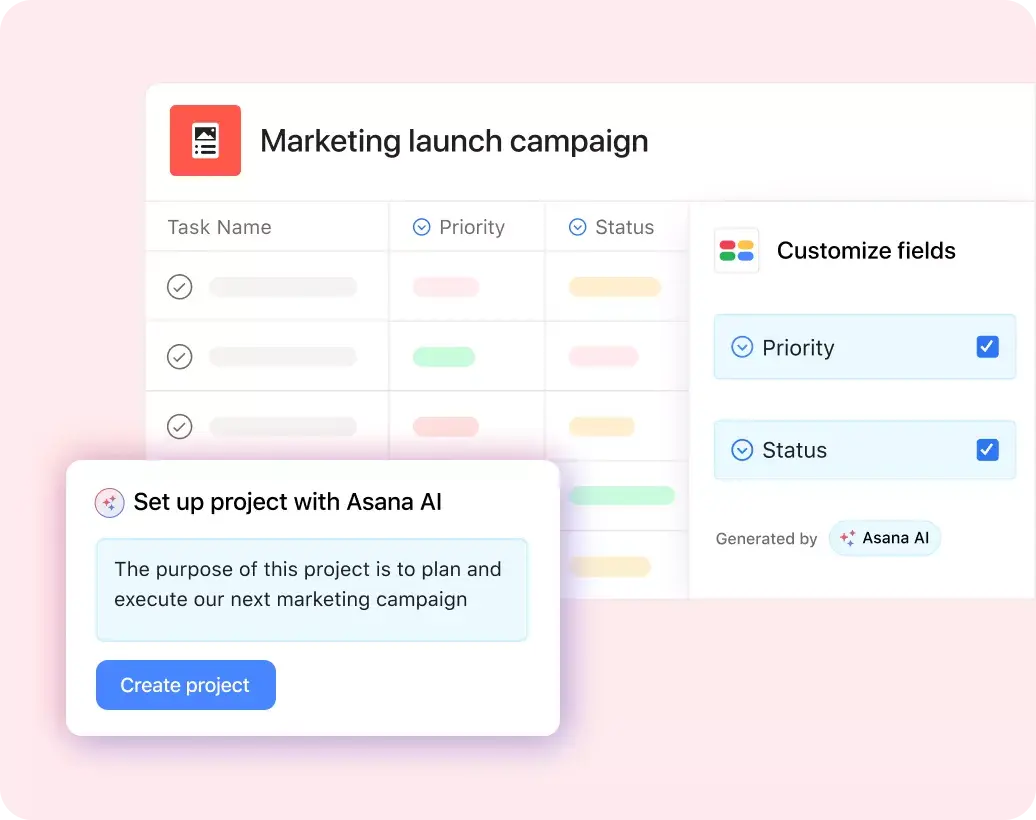











Create templates with Asana
Learn how to create a customizable template in Asana. Get started today.