Visual project management: Choose the right view for your work

85% of Fortune 100 companies choose Asana¹






Summary
The most useful project view addresses key team questions, such as: What happens next? Where is work waiting? What is due this week? Choosing the right view helps you spot key details without reworking the plan. This guide will show you how to compare timelines, boards, and calendars, review Asana customer examples, and establish a shared structure for your team.
What is visual project management?
Visual project management organizes work using visual layouts like timelines, Kanban boards, and calendars. Each layout presents tasks, owners, and dates differently. This view clarifies the plan for your team, while assigning owners and updating tasks keep it effective.
By visualizing tasks, deadlines, resources, and progress, teams can more easily understand, plan, and execute their projects. Key concepts in visual project management include:
Visualizing project schedules, task dependencies, and milestones.
Tracking progress and spotting potential issues or blockers.
Facilitating team collaboration and communication.
Providing at-a-glance status updates for stakeholders.
Benefits of visual project management
Visual project management shows what your team is working on, when deliverables are due, and how tasks fit together. Use that shared picture to decide where to follow up, adjust a date, or resolve a blocker. It can help your team:
Review progress. Use a shared dashboard to review completed tasks, upcoming deadlines, and issues that need attention.
Spot bottlenecks. Look for work waiting in the same stage, then ask the owner what is needed to move it forward.
Follow the project from planning to delivery. Use different views to schedule work, track execution, and report on progress.
Coordinate across teams. Review the same project plan so everyone can see the tasks and workflows they rely on.
Share the right level of detail. Give stakeholders a view of progress while keeping task details available to the people doing the work.
Review dependencies. Check which tasks rely on earlier work so you can discuss a delay before it affects the next handoff.
How to choose the right project view
Start by identifying the key question your team needs to answer. Timeline, board, and calendar views offer different perspectives on the same project, so you may use multiple views as work progresses.
Your question | View | What to look for | What is harder to see |
What needs to happen before the next task? | Timeline or Gantt chart | Dates, task order, and dependencies. | Work without useful scheduling dates. |
Where is work waiting? | Kanban board | Stages, owners, and tasks awaiting review. | Task duration and the full schedule. |
What is due this week or month? | Project calendar | Upcoming deadlines and crowded days. | The sequence of dependent tasks. |
Xero matches the view to the way a project is managed. In Asana’s customer story, Xero describes using board view for Kanban-style projects and Timeline for waterfall projects. Choose the view that helps your team manage work, rather than forcing every project into the same layout.
Visual project management software centralizes tasks and updates, enabling your team to choose the most suitable view. When evaluating tools, consider how easily you can switch views, share updates, and keep task details current.
Read: How to use Asana Lists, Boards, Calendar, and Timeline View
Project timelines and Gantt charts
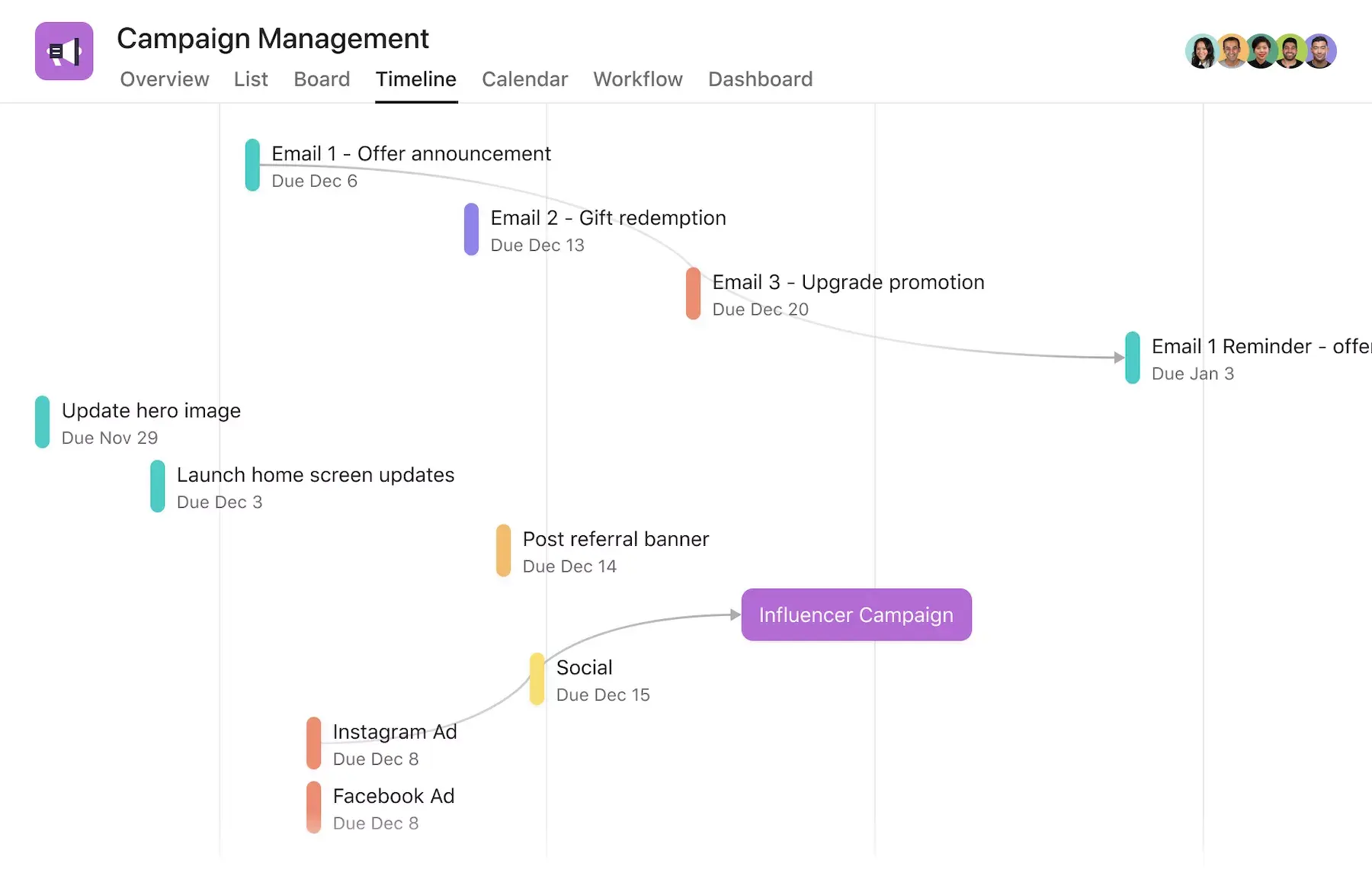
One way to visualize a project plan is to create a timeline or Gantt chart of your project schedule. With timeline management, you can organize project details in a bar chart to show when each task or deliverable needs to be completed and how long it will take.
Use a timeline when task order and timing are important. Start dates, due dates, and dependencies show when one task must finish before another can begin. A timeline provides a schedule overview, while a Gantt chart offers more detail on task durations and dependencies.
Timelines and Gantt charts help coordinate work across teams, especially when several tasks contribute to a shared deadline. Common uses include:
A timeline is less useful when work lacks meaningful dates or the schedule is still being defined. Use a board to organize work by stage initially, then add dates when you are ready to plan the sequence.
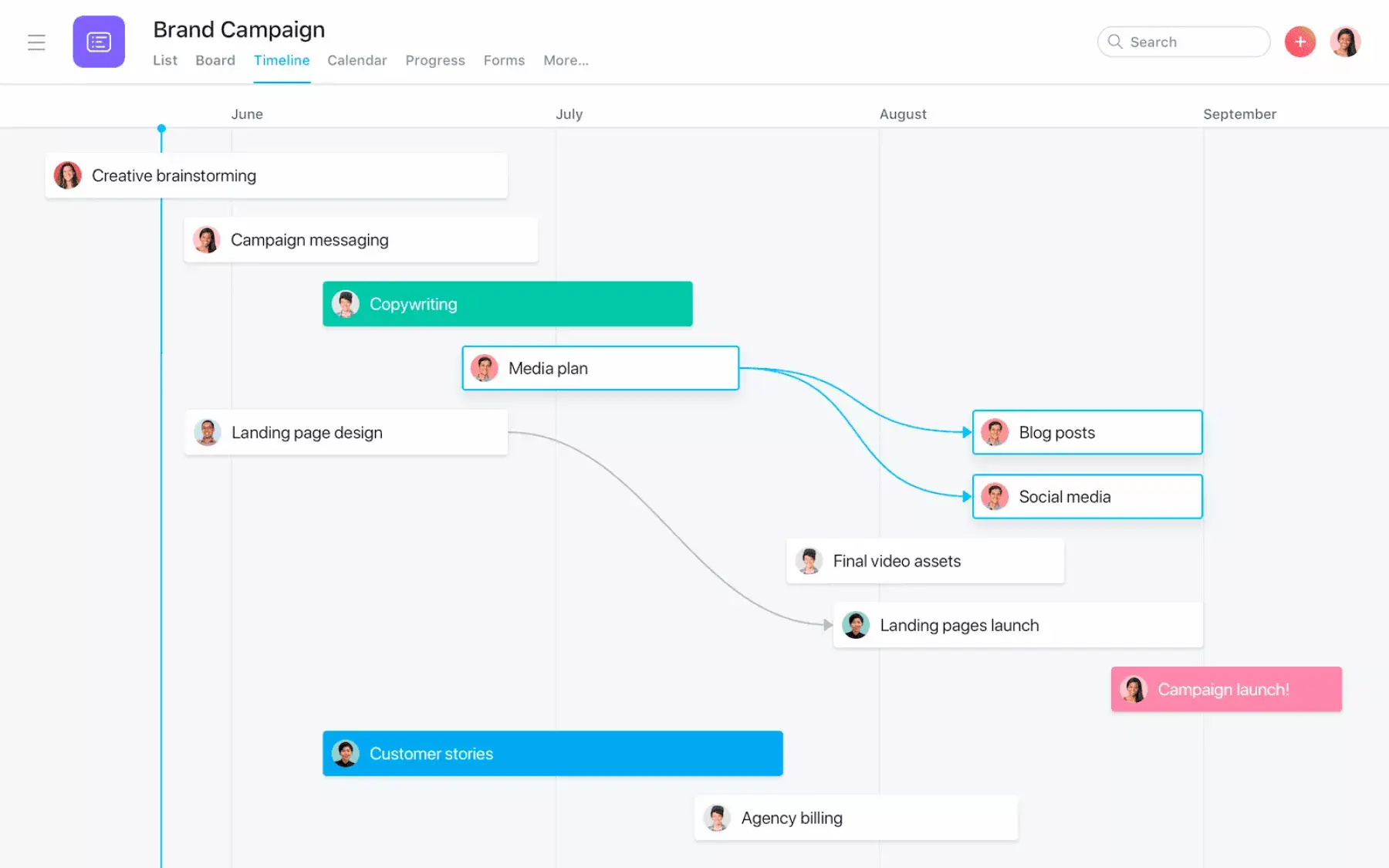
For a product launch, a team adds design, approval, and release tasks to a timeline. If approval moves, the project owner checks the dependent release tasks with their owners before changing the schedule.
Wikimedia Foundation used Timeline to display the month and country of its email fundraising campaigns, with colors for different geographies. This helped the team see when campaigns in countries such as France and Japan overlapped. Use colors for categories your team needs to compare, then open the task for the details behind a crowded period.
Read Wikimedia Foundation’s case study →
Share the timeline with the people responsible for the work and review it when dates change. Agree on who updates each task so the schedule reflects the team’s latest decisions.
In Asana, Timeline lets you review tasks and dependencies together. It is available on Starter and higher plans, as well as applicable legacy plans. Check the project’s dependency settings before relying on a date change to automatically shift other tasks.
Kanban boards

Kanban boards organize work as cards in columns. Each card represents a task, and the columns usually represent stages such as To do, In progress, Review, and Done. As tasks move through a workflow, advance the card to its next stage so the team can see its status.
Use a Kanban board when your primary concern is understanding task status or when tasks can begin when capacity allows. Kanban helps teams manage ongoing requests and work within a sprint. Since a board shows stages, use a timeline alongside it when you also need to review task durations and dependencies. Common uses include:
With our product launch example, a creative task sits in Review. Its owner follows up with the reviewer and moves the card to Done once the review is complete.
With Kanban boards in Asana, your team can keep each task’s description, files, comments, and collaborators attached to its card. Review tasks waiting in each column and ask owners what they need to advance the work.
Project calendars

Use a project calendar when you need to know what is due on a specific day, week, or month. It helps you compare deadlines and identify days with more work scheduled than your team can manage.
Visualize team calendars with AsanaCalendars help coordinate publication dates, launches, and other deadlines across teams. Use them to plan:
Marketing campaign calendar
Product release dates and milestones
Deadline-driven project schedules
A crowded calendar can make it difficult to track individual tasks. If you need to review task stages or the order of dependent work, switch to a board or timeline and use the calendar for date checks.

For our example product launch, the team checks the release date alongside that week’s promotional tasks. If several activities fall on the same day, the owners discuss whether any can move.
The International Committee of the Red Cross (ICRC) used a global editorial calendar to organize content by month. The team added fields for content type and responsibility, allowing colleagues to see what was planned and who was responsible. Pair calendar dates with ownership so people know whom to contact when a deadline needs attention.
In Asana Calendar view, tasks associated with the project appear on their due dates. Add dates to the work you want to schedule, then switch to Calendar to review the week or month. Dragging a task to another day changes its due date, so discuss changes with its owner.
Other visual project management tools
Other visual formats help teams define work, organize ideas, or report progress. Select the format based on the question you need to answer:

Data visualization in project reporting
Charts and dashboards help you review project progress and communicate it to stakeholders. A completion chart shows finished work, while a timeline highlights dates and dependencies. Choose a measure that helps the audience identify priorities, and confirm which tasks the report covers.
Scrum boards
Scrum boards display tasks a team has selected for a timeboxed sprint. Teams review progress during the sprint and decide what to carry forward when it ends. Kanban boards can instead support work moving continuously through stages, without requiring a sprint cycle.
Read: Scrumban: The best of two Agile methodologiesWork breakdown structures (WBS)
A work breakdown structure divides the project’s scope into deliverables and smaller work packages. Use it to identify tasks before assigning dates and creating a schedule.
Mind maps
Mind maps organize ideas around a central topic, using branches to show connections. Use them to brainstorm and explore project relationships. Once the team agrees on the work, convert relevant ideas into tasks with owners and dates.
Read: 4 types of concept maps (with free templates)Choosing the best visual project management software
Evaluate visual project management software by testing it with a small, familiar project. Ensure team members can find and update their work, and switch views without maintaining separate versions. Use these five criteria to compare your options.
Read: Project management software and tools1. Customizable project views
Switch the same project between board, timeline, and calendar views. Ensure task owners, dates, and updates remain attached to each task. Your team should be able to select a view based on its needs without recreating work.
2. Intuitive interface and automation
Ask a teammate to update a task, move it to another stage, and change its due date. Confirm the steps are straightforward and the outcome meets team expectations. For automation, test the required trigger and action, and verify the plan and settings before relying on it.
Read: 12 tips to effective communication in the workplace3. Team collaboration and communication
Look for comments, files, and updates that stay with each task so teammates can discuss work in context. Also, check how the software manages tasks that belong to multiple projects.
Discovery Digital Studios added the same “publish video” task to a video production project and an Instagram content calendar. Updates, comments, and completion appeared in both projects. Keeping one shared task helped the team maintain its calendar without updating a separate copy.
Read Discovery Digital Studios’ case study →
4. Real-time reporting and visibility
Verify which work a dashboard includes and whether task updates appear in reports. An effective reporting view shows what is complete, what is overdue, and where follow-up is needed.
In Asana, Smart status can draft a project status update for you to review and edit before posting. It is available on Starter and higher plans.
5. Accessibility and integrations
Check that teammates can view and update their work from the devices they use. Test the integrations your team relies on with a real handoff, including who has access and which updates pass between the tools. Confirm the behavior rather than assuming every change will stay synchronized.
Read: Top 11 integrations to keep your tools and teams connected with Asana
Getting started with visual project management
Begin with one project and a view that addresses a question your team already asks. Use the following steps to build a maintainable plan, then adjust it as you learn what works best.
Read: What is change management? 6 steps to build a successful change management processPilot on a single project
Start by piloting visual project management on a single project. Agree on the key question the view should answer and who will update tasks. Show teammates how to find their work, change its stage, and flag blockers before expanding to other projects.
Establish a consistent structure
Use consistent task names, stages, and color categories so teammates can easily identify their work. Start with the following fields, then adjust them as needed. This structure can be reused for future projects.
Field | What to enter |
Task or deliverable | Name the action and the result, such as “Approve launch creative.” |
Owner | Assign one person responsible for moving the task forward. |
Start and due dates | Add the dates needed to plan when the work starts and finishes. |
Stage | Use agreed labels such as To do, In progress, Review, and Done. |
Depends on | Identify prerequisite tasks when the order matters. |
For a starting point in Asana, explore the project timeline template and adapt its tasks, dates, and dependencies to your project.
Continuously optimize and measure success
Choose one measure that helps your team review how the project is running, such as overdue tasks or the time work spends in Review. Check it regularly using the same definition and discuss what changed. Use the results to decide whether the team needs a different view, fewer stages, or a change to how work is assigned.
Read: Understanding kaizen: A guide to continuous improvement in business
Seek feedback and refine
Ask teammates what is still difficult to see or update. If they cannot tell who owns a task, improve the ownership details. If they struggle to follow the schedule, review the dates and dependencies together. Adjust the fields or view to address the problem they describe.
Read: Don’t like giving feedback? These 20 tips are for you
Asana's visual project management
Select a project, add tasks and owners, and start with the view that answers your team’s immediate question. In Asana, you can share the plan and switch views as work evolves, ensuring updates remain aligned with your team’s tasks.
Visualize team calendars with AsanaFAQs about visual project management
The best visual project management tool depends on your team’s needs. Use timelines or Gantt charts for scheduling, Kanban boards for workflow stages, calendars for deadlines, and dashboards for reporting. Asana offers multiple project views, allowing teammates to choose how to view their work. Compare options using this project management software guide.
A Kanban board with To do, In progress, Review, and Done columns is an example of visual management. Each task appears as a card in its current stage. If several cards are waiting in Review, the team can check with the reviewers and decide how to move the work forward.
To create a visual project timeline, list the deliverables and the tasks needed to complete them. Assign owners, add start and due dates, and connect tasks that depend on earlier work. Review the sequence with the team and adjust it when the plan changes. A project timeline should show both the work and the order it needs to happen.
The best graph depends on what you need to understand about progress. Use a timeline or Gantt chart to compare dates and dependencies, a Kanban board to track work through stages, and a completion chart to review finished work. Choose a view that helps the team identify where to follow up.
To visualize a project timeline in Excel, create columns for tasks, start dates, and durations. Insert a stacked bar chart using the start dates and durations, then hide the start-date series so only the task durations are visible. This method works for simple schedules; shared task ownership and dependency changes require separate maintenance as the project evolves.